Fast. Reliable. Delivered.Call 876-817-1011
Learn how to upload your purchase invoice, report a package problem, understand claims and follow our replies. Follow the steps at your own pace.
Sign in to your OCA accountYour purchase invoice is the receipt or order information from the store where you bought the item.
Open the OCA portal and enter your email or username and password.
Open the customer portalForgot your password? Use “Forgot password?” on the sign-in screen.
Open the navigation menu and choose Packages.
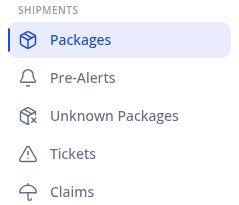
Important: the separate Invoices menu shows your OCA bills. Upload your store purchase invoice inside the relevant package.
Match the tracking number or waybill in your warehouse email with the package in your account. Use the package search box if needed.
If a package is not showing yet, check that you are signed in to the correct account. Contact OCA for help if it is still missing.
Tap the package card to open its details. Scroll down until you see Attached files.
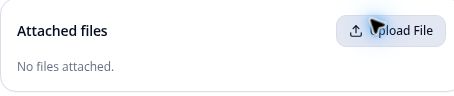
Tap Upload File. Choose your purchase invoice or a clear order screenshot from your device. Depending on your phone, you may need to open Photos, Gallery or Files.
Select the correct file and complete any confirmation shown on your device. Allow the upload to finish before closing the package.
Make sure the image is clear and readable. Include the item description, price and order details. Keep unrelated sensitive payment details out of the image.
Look for your file under Attached files. If it does not appear, reopen the package and check again before assuming the upload is complete.
Repeat these steps for each package. If the upload does not work, contact customer service with your waybill or tracking number and explain what happens.
Yes. Please upload a purchase invoice for every package, regardless of its value.
A readable store invoice or order screenshot should show the item description, price and order details. An OCA freight bill is different from your store purchase invoice.
Your Package Received email contains a blue Upload Invoice button. Open the email and tap that button, then follow the link to add your invoice. Sign in if prompted.
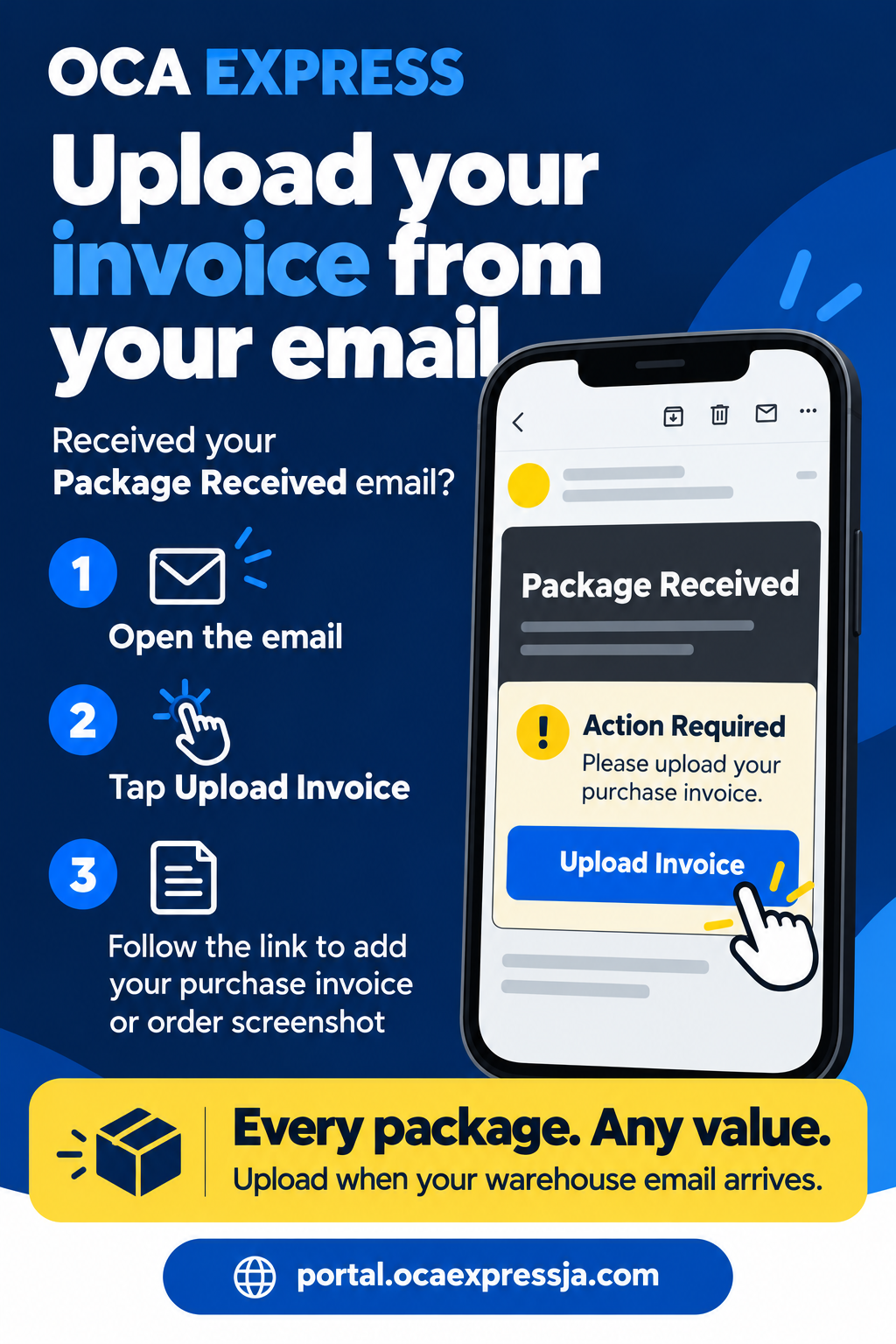
If you cannot find the email, use the package upload steps above.
Use a ticket to keep your package details, supporting files and OCA’s replies together.
Open Tickets in your accountSign in to the portal, open the menu and select Tickets. Tap Open a ticket.
Enter the tracking number. Add the waybill and delivery date if available. Check the number carefully.
Select the category that best describes the problem. In Description, say what happened, when it happened and what help you need.
For example: “The seller marked my order delivered on Monday, but it is not showing in my account. Please help me confirm whether the warehouse received it.” Add your actual tracking number in the tracking field.
Use Upload receipt image for delivery evidence or Add merchant invoice for the purchase invoice, as appropriate.
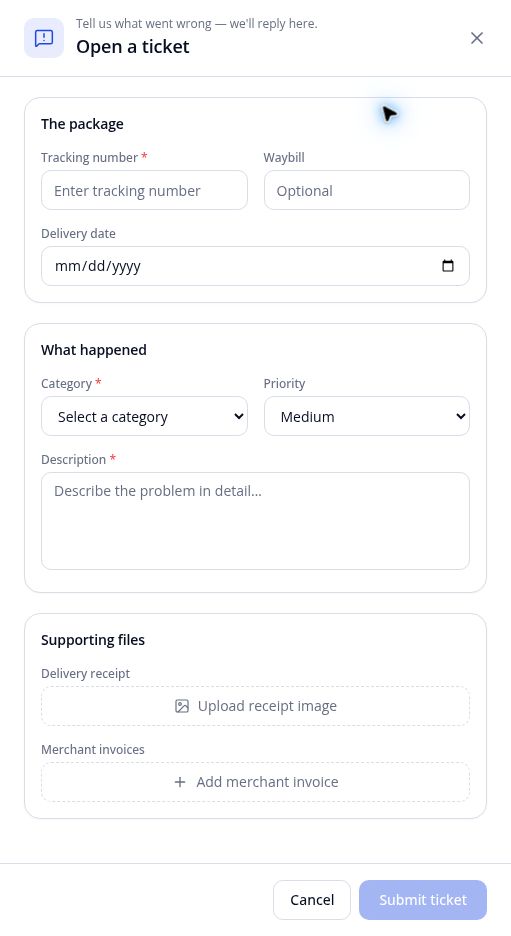
Check your information and tap Submit ticket. Keep the ticket number for follow-up.
A ticket helps us investigate a problem. A claim is a request for compensation for eligible loss, damage or missing contents. Reporting a problem does not guarantee compensation.
See how to upload your invoice
Please report problems immediately wherever possible. OCA’s reporting timeframes are:
Your first report counts. The ticket submission date, or the date your first report is logged by OCA staff, establishes the reporting date. Keep your ticket or reference number. You do not have to complete the investigation within seven days; provide additional evidence when requested.
Invoice timing is separate. The reporting window does not extend the requirement to upload an acceptable purchase invoice before Customs clearance in Jamaica.
Exceptional late reports: management will review the circumstances and available evidence case by case rather than automatically rejecting every late report. Review does not guarantee compensation.
These operational reporting timeframes do not limit any rights available under applicable law.
Open a Ticket for the affected package and explain what happened. Use the same ticket for follow-up. Visible damage or tampering should be reported at collection or delivery, before leaving where possible. Report damage or missing contents discovered after opening within 7 calendar days of collection or delivery. Report a package suspected missing or incorrectly delivered within 7 calendar days of becoming aware of the problem.
Have your tracking number or waybill, store purchase invoice and any relevant delivery evidence ready. For damage or missing contents, keep the packaging and take clear photos of the package and affected contents for the investigation.
Your purchase invoice or order document should clearly show the merchant, item description, quantity, purchase value, order date and order or invoice number, plus purchaser details where available.
Open the portal menu and choose Claims to see claim records, status information and any available filing option.
No online filing option? If the Claims page says claims cannot be filed online, open a support ticket instead. Customer service will guide you through the next steps. Please do not open duplicate tickets for the same issue.
Open Claims in your accountProvide any additional information requested. OCA reviews receiving records, package photographs, movement history, weights and other relevant evidence to determine responsibility. Investigation times vary.
Return to your ticket for messages and requested information. Check Claims for any claim record or status made available in your account.
Not every problem is covered. For example, manufacturer defects, inadequate merchant packaging and delays outside OCA’s control may be excluded. Read the full policy for the conditions and exclusions.
Yes. Open a ticket so OCA can investigate and advise you. However, reporting the problem is different from qualifying for compensation. Missing or late invoices may make a claim ineligible under OCA’s policy.
No. It supports eligibility and helps establish the purchase value, but OCA must also confirm responsibility and the other policy requirements must be met.
Sign in to your account, choose Tickets and open the ticket you submitted.
Provide any information requested in the same ticket. This keeps the investigation history together.
Customer service can guide you through the steps. Have your tracking number or waybill ready and tell us which step is giving trouble.
You can share this page with someone who needs help using their OCA account.
Go to your tickets